AMQP Authentication
Mint a vcp:connect API key and consume telemetry from amqp.voke.turena.cz over AMQPS.
Connect over AMQPS to amqp.voke.turena.cz:5671 with your organisation slug as the username and your plaintext API key as the password. The broker pushes telemetry, alarms, and status events to you; you publish commands, schedules, and config back over the same connection.
For the REST counterpart (same wizard, different scope), see REST Authentication.
How the connection is shaped
One AMQPS URI carries everything the broker needs. Read it once and the rest of the wizard makes sense:
amqps://<org-slug>:<api-key>@amqp.voke.turena.cz:5671/partner-<key-id>
└─ username ─┘ └─ password ─┘ └─── host:port ───┘ └── vhost ──┘<org-slug>— your organisation's slug, the same one in your workspace URL (voke.turena.cz/orgs/<slug>/…).<api-key>— the plaintext key you mint in the wizard below. Shown exactly once on the reveal screen.amqp.voke.turena.cz:5671— Voke's public AMQPS endpoint. Always TLS, never plain AMQP.partner-<key-id>— a dedicated vhost provisioned per key, so your queues never collide with other partners'. The key ID is the opaque identifier next to the API key on the reveal screen.
Once connected, you consume from the three event queues (telemetry, alarm, status) and publish to the three command queues (command, schedule, config). The full queue list is on the API key detail page after you mint.
Prerequisites
- An ORG_ADMIN account on the target organisation.
- An AMQP 0-9-1 client library —
amqplib(Node),pikaoraio-pika(Python),RabbitMQ.Client(.NET). - A service with a stable egress IP. The wizard requires a CIDR allowlist on any preset that grants AMQP.
Step 1 — Open the Connections page
Sign in to https://voke.turena.cz, pick the right organisation, and open Workspace settings → Connections (/orgs/<orgId>/settings/connections).
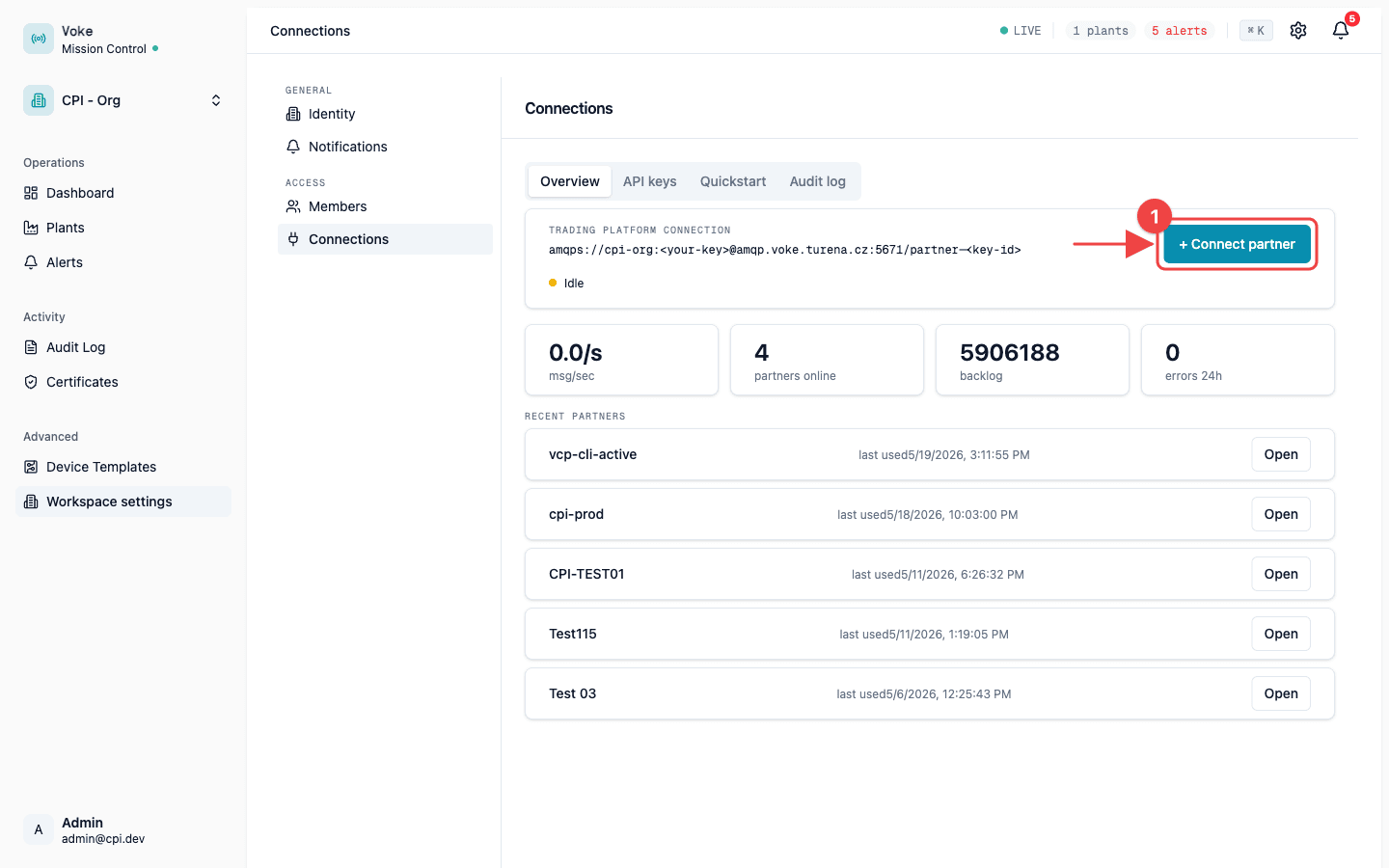
Click + Connect partner to open the wizard.
Step 2 — Pick a preset that includes vcp:connect
vcp:connect is the AMQP authentication scope. Any preset that includes it grants broker access — pick the one that matches what you're integrating.
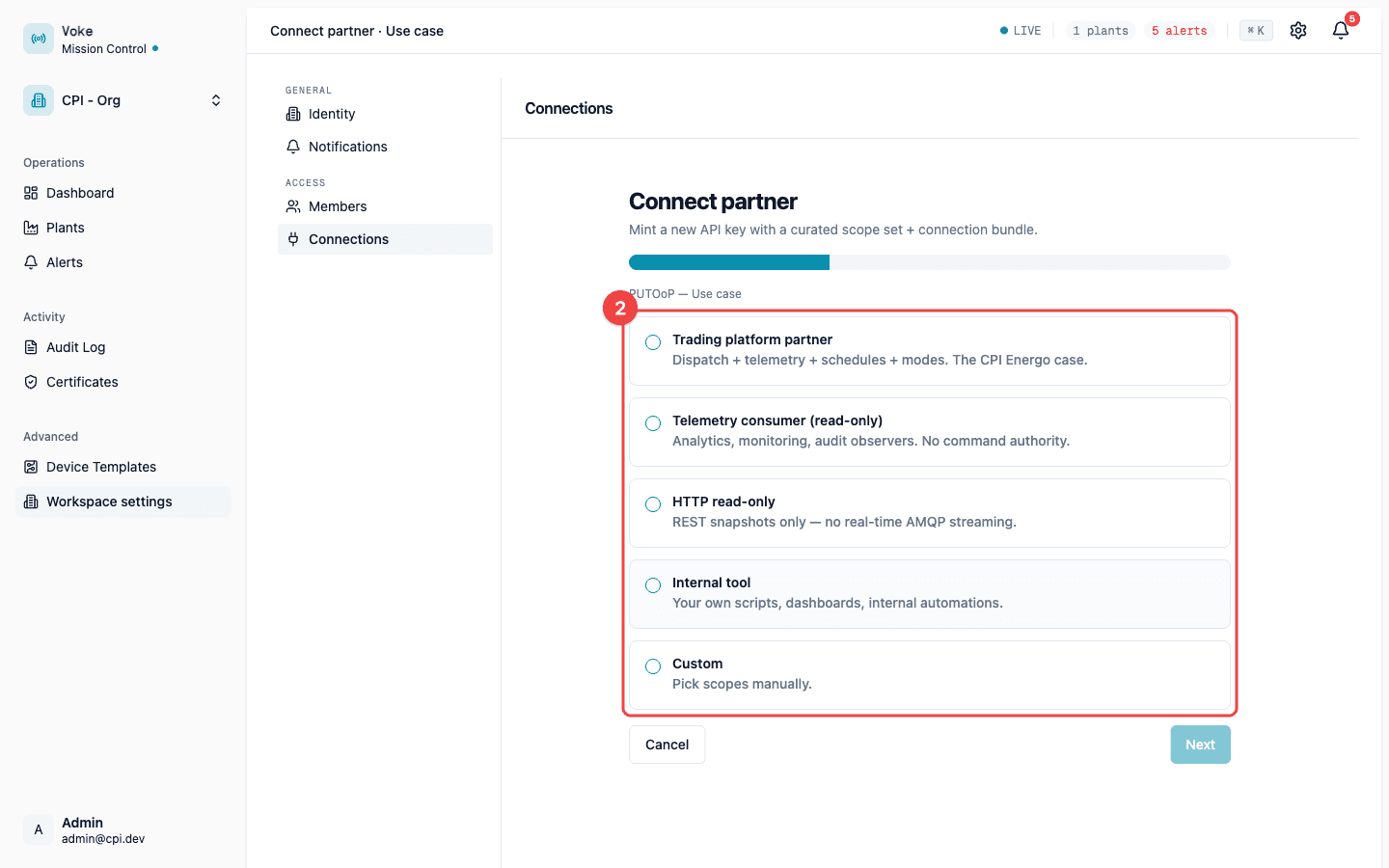
| Preset | Best for | AMQP access |
|---|---|---|
| Trading platform partner | Full ESM integration: dispatch commands, consume telemetry, push schedules and modes. | Yes (vcp:connect + all vcp:write:*) |
| Telemetry consumer (read-only) | Analytics or monitoring services that ingest the live telemetry, alarm, and status streams. | Yes (vcp:connect + vcp:read) |
| HTTP read-only | Dashboards and reports that only need REST. | No |
| Internal tool | In-house scripts against admin REST endpoints. | No |
| Custom | Pick scopes manually. | If you check vcp:connect |
Step 3 — Confirm vcp:connect is checked
vcp:connect is the scope the broker checks on every AMQP handshake. Without it, the connection is rejected before any queue access is evaluated. Trading platform partner and Telemetry consumer pre-check it; for Custom, check it manually. Any vcp:write:* scopes you also check let the key publish on the matching routing keys.
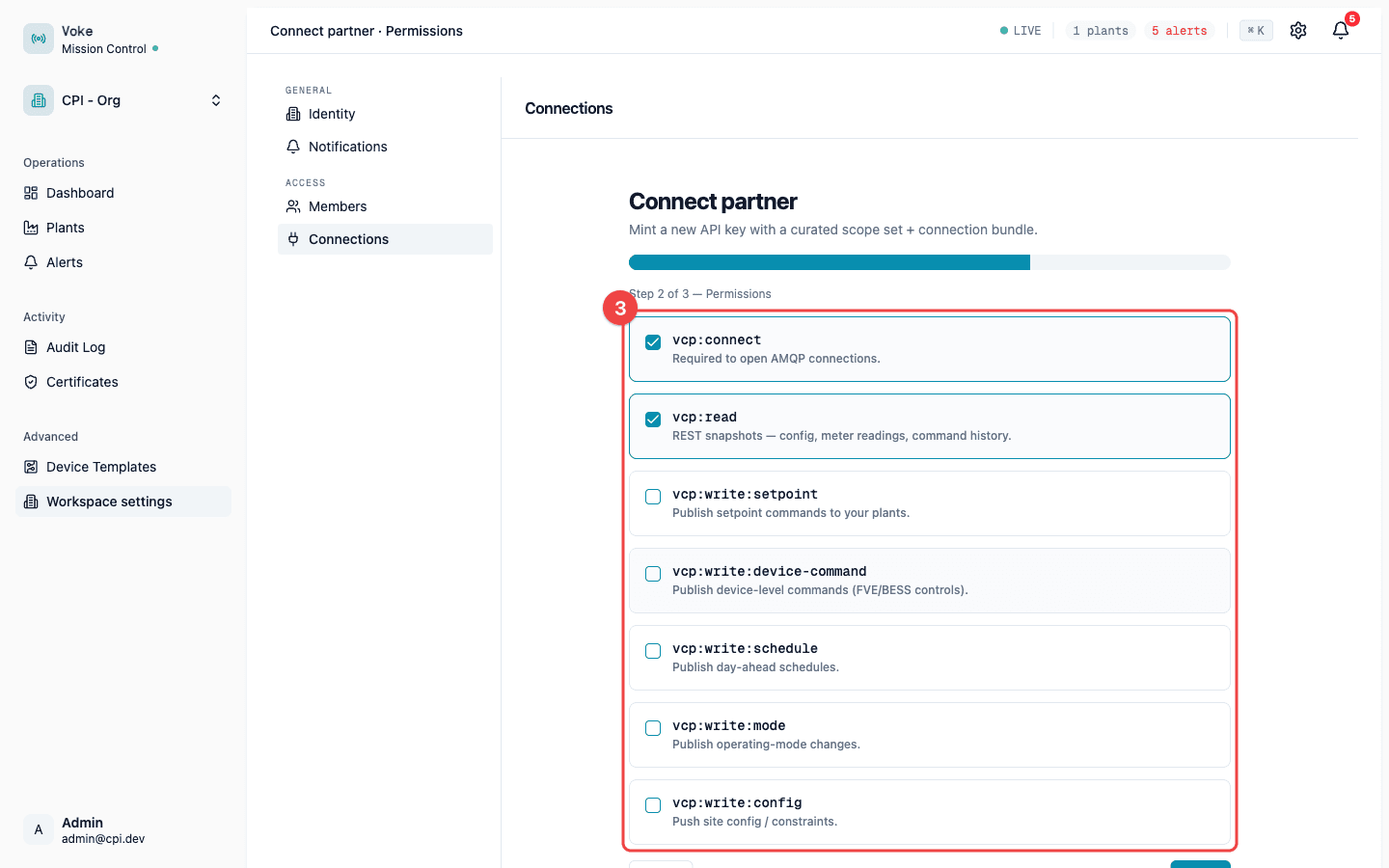
| Scope | What it grants over AMQP |
|---|---|
vcp:connect | Open a broker connection. Required for every AMQP integration. |
vcp:read | Consume from the outbound event queues (telemetry, alarm, status). |
vcp:write:setpoint | Publish {slug}.command.site-setpoint messages. |
vcp:write:device-command | Publish {slug}.command.device.* messages. |
vcp:write:schedule | Publish {slug}.schedule.* messages. |
vcp:write:mode | Publish {slug}.command.mode messages. |
vcp:write:config | Publish {slug}.config.* messages. |
Step 4 — Name the key, add an IP allowlist, generate
Give the key a name you'll recognise later and a partner ID. AMQP-bearing keys require at least one CIDR in the allowlist — the broker rejects connections from any other address. Add a CIDR and click Generate.
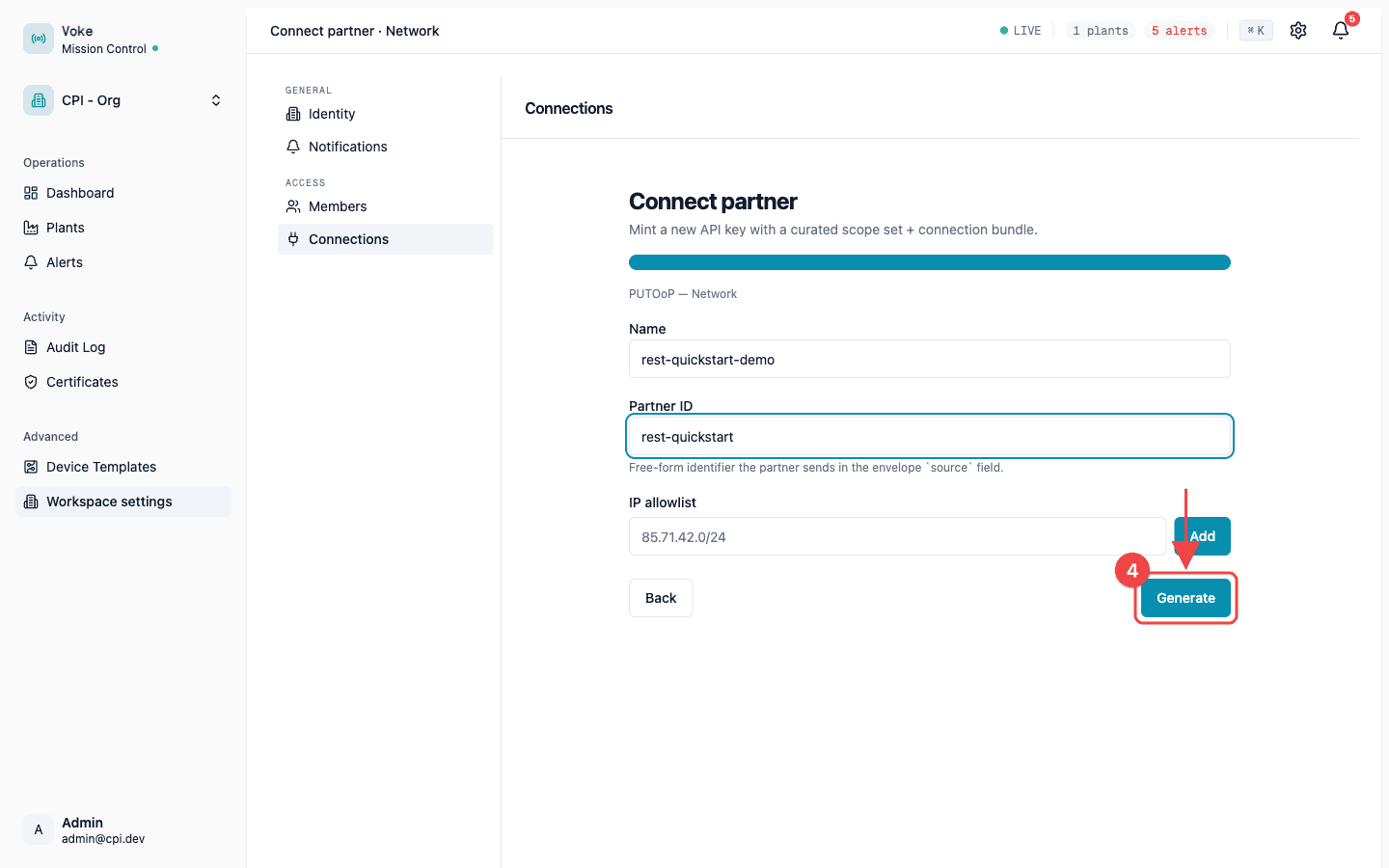
The server runs a broker self-test against the freshly-minted credentials before redirecting; if the probe fails the call returns 500 and no bundle is shown. A successful mint lands on the API key detail page with the reveal banner at the top.
Step 5 — Copy the bundle
The reveal screen shows four values. Copy all of them into your secret manager before leaving the screen.
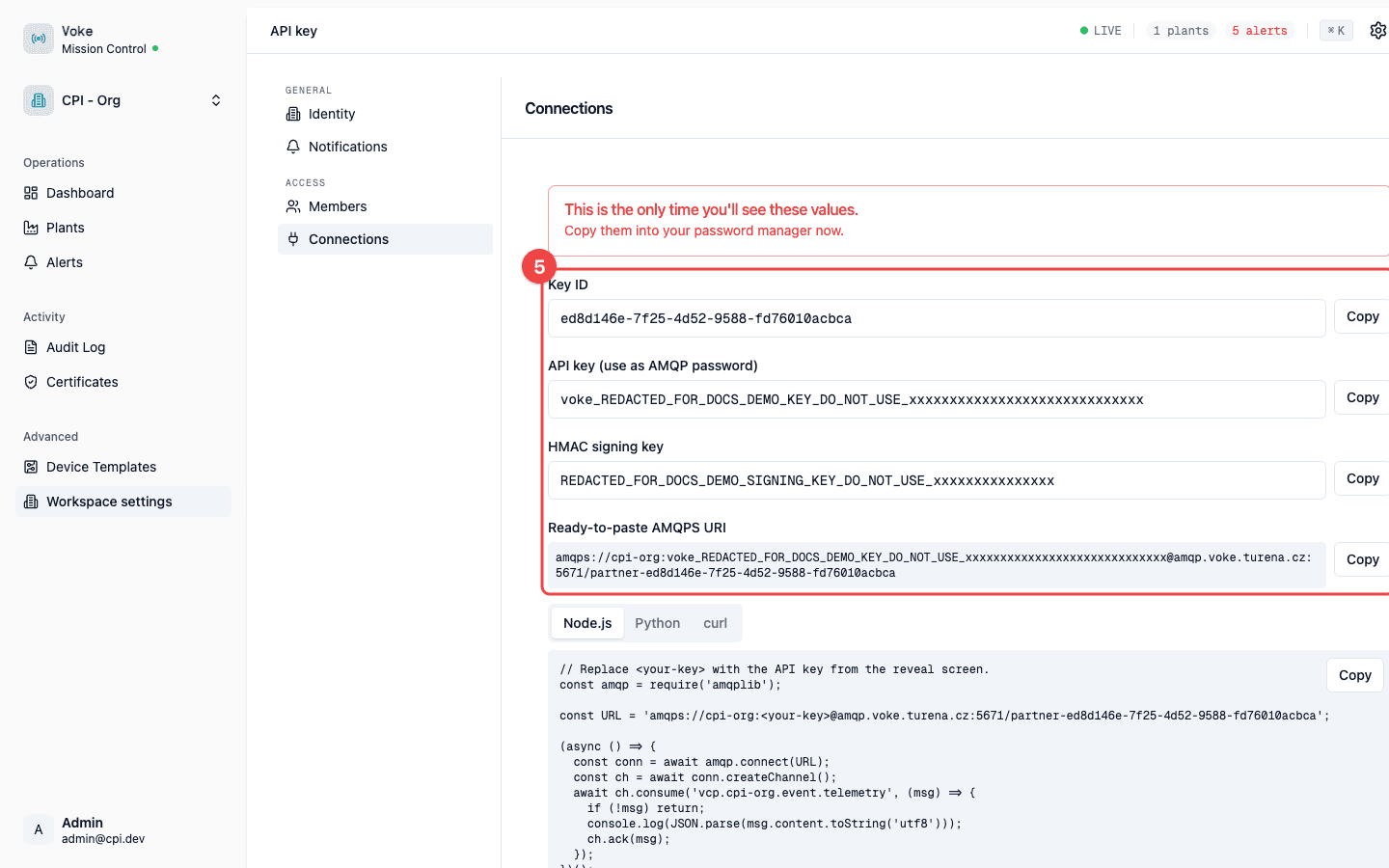
- Key ID — opaque identifier you can mention in support tickets without exposing the secret.
- API key — the plaintext secret. Doubles as the AMQP password and the REST
X-API-Keyheader. - HMAC signing key — only present when the key carries a
vcp:write:*scope. Used to sign high-risk commands (see VCP message integrity). - AMQPS URI —
amqps://<org-slug>:<api-key>@amqp.voke.turena.cz:5671/partner-<key-id>. Paste straight into any AMQP client that accepts a connection string.
The bundle is shown exactly once. If you lose it, mint a new key with the same scopes and revoke the old one.
Step 6 — Connect from your client
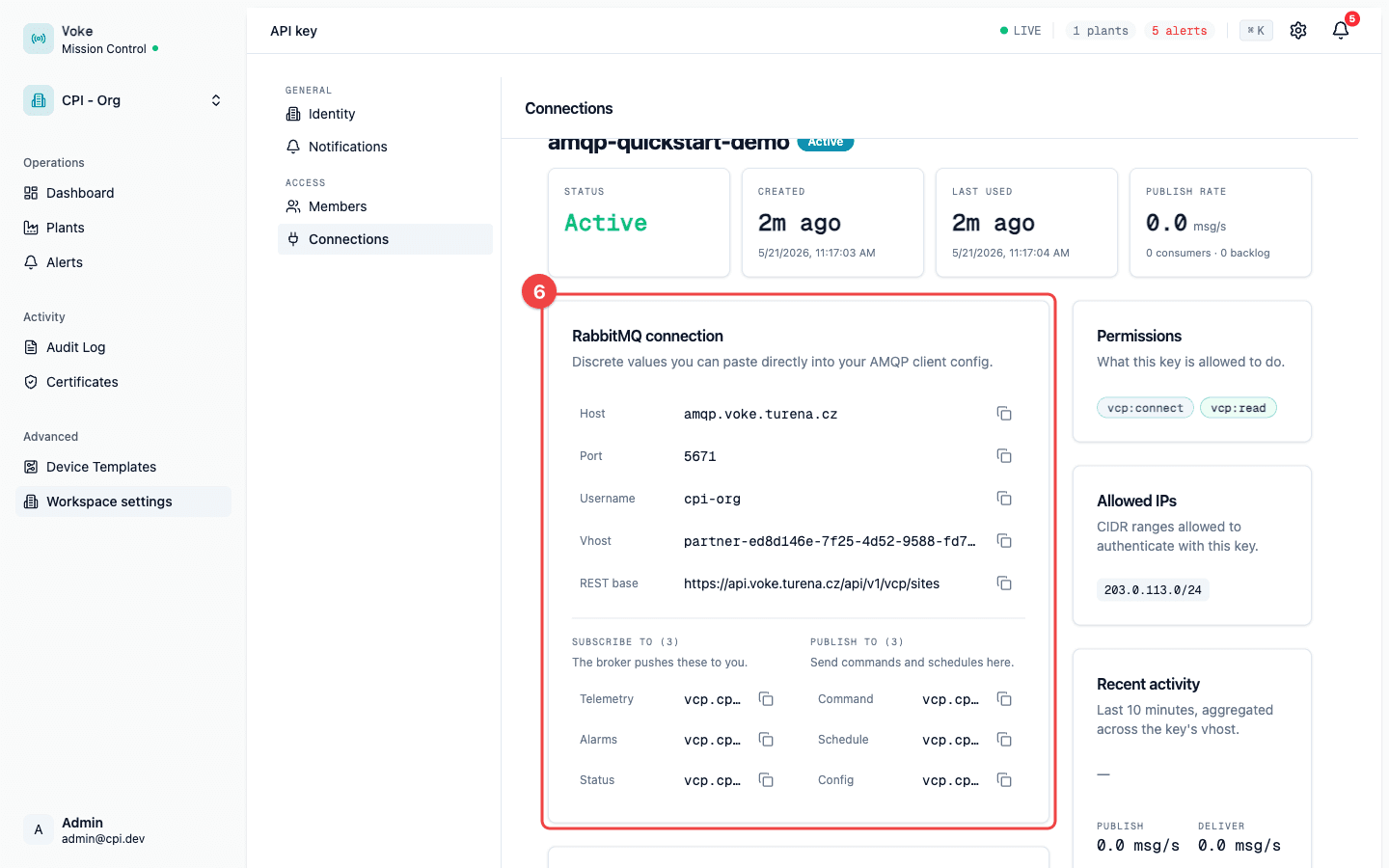
Once you click I've saved these, the detail page replaces the secrets with discrete connection values you can paste directly into your AMQP client config.
// Node.js — consume telemetry
import * as amqp from 'amqplib';

const URL = process.env.VOKE_AMQPS_URI!; // amqps://<org-slug>:<api-key>@amqp.voke.turena.cz:5671/partner-<key-id>

const conn = await amqp.connect(URL);
const ch = await conn.createChannel();

await ch.consume('vcp.<org-slug>.event.telemetry', (msg) => {
  if (!msg) return;
  const envelope = JSON.parse(msg.content.toString('utf8'));
  console.log(envelope);
  ch.ack(msg);
});
# Python — consume telemetry
import asyncio, os
import aio_pika
async def main():
conn = await aio_pika.connect_robust(os.environ["VOKE_AMQPS_URI"])
ch = await conn.channel()
queue = await ch.get_queue("vcp.<org-slug>.event.telemetry")
async with queue.iterator() as it:
async for msg in it:
async with msg.process():
print(msg.body.decode("utf-8"))
asyncio.run(main())Queue names at a glance
The broker pushes events to you; you publish commands to it.
| Queue | Direction | Routing key family |
|---|---|---|
vcp.<slug>.event.telemetry | broker → you | <slug>.event.telemetry.realtime.<siteId>, <slug>.event.telemetry.meter.<siteId> |
vcp.<slug>.event.alarm | broker → you | <slug>.event.alarm.raised |
vcp.<slug>.event.status | broker → you | <slug>.event.command.ack (command acks) |
vcp.<slug>.command | you → broker | <slug>.command.site-setpoint, <slug>.command.device.*, <slug>.command.mode, <slug>.command.emergency |
vcp.<slug>.schedule | you → broker | <slug>.schedule.create, <slug>.schedule.cancel |
vcp.<slug>.config | you → broker | <slug>.config.* |
Errors
| Symptom | Likely cause | Fix |
|---|---|---|
ACCESS_REFUSED ... PLAIN on connect | API key revoked, expired, or unknown; or username isn't your org slug. | Mint a new key. Username MUST be the org slug, not the key ID. |
ACCESS_REFUSED ... vhost on connect | Vhost path missing or wrong. | The vhost is partner-<key-id> — include the leading slash and URL-encode if your client requires it. |
| Connection accepted, then closed immediately | Caller IP not in the allowlist. | Add the egress CIDR on the detail page under Allowed IPs, or mint a new key with the right CIDR. |
not authorized when publishing | Missing vcp:write:* scope for the routing key family you tried to use. | Re-mint with the matching write scope, or use the right routing key for the scope you have. |
Next steps
- VCP message integrity — when and how to HMAC-sign command envelopes.
- AMQP Reference — AsyncAPI spec for every channel and message shape.
- REST Authentication — the REST counterpart using the same wizard.